A New Dev Env
For about 4 years I developed my plugin on Windows using msys2, as per the VCV Rack docs
The problem I found with this is that I wanted to keep msys2 up-to-date, I like to keep my system running well. But when I update msys2, it creates a new versioned directory so I have to reset any customisations, it potentially upgrades certain libs and deps that Rack uses and breaks the build, and downgrading libs and deps is not always an easy task.
Eventually I just moved my development over to my macbook for a trouble free dev cycle. The problem with that is I prefer my audio setup on my PC, so I have to develop on my macbook, then build and export the plugin and transfer to my PC to test.
As you can imagine, I got fed up with this pretty quickly.
Finally, I have now figured out a better dev env for Windows, I thought I would share it here in case anyone wants to give it a try:
Note: this post is just for a basic dev env to build and test Windows only. I plan to make new posts for building Rack and using it to debug, and cross compiling plugins for all platforms, if/when I get them working.
Root Dir
First step is to create a directory for it, I am going to use one directly in C just for simplicity. All instructions assume the development workspace is rooted at: C:\rackdev\
If you choose a different directory, adjust the path variables in the scripts accordingly.
You should also download and unzip the Rack SDK version you want into C:\rackdev\Rack-SDK\
WSL
Now we need to setup WSL
Open PowerShell as Administrator and install Ubuntu 24.04:
wsl --install -d Ubuntu-24.04
Optional additional WSL steps:
-
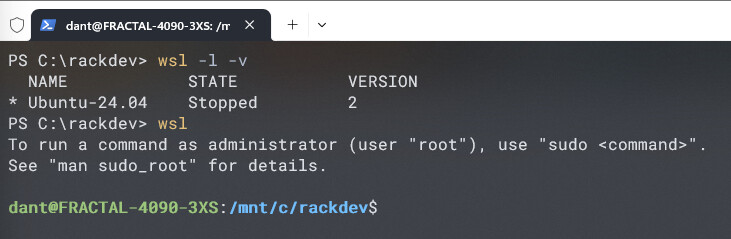
List existing distros
wsl -l -v -
Archive an old distro to a backup tar file
wsl --export <DistroName> "C:\rackdev\<DistroName>\_backup.tar" -
Remove an unneeded distro and delete its virtual disk
wsl --unregister <DistroName> -
Set Ubuntu-24.04 as default
wsl --set-default Ubuntu-24.04 -
To prevent WSLg from running unnecessary GUI display/audio servers (saving ~250–500 MB RAM)
-
Create
C:\Users\<YourUsername>\.wslconfig[wsl2] guiApplications=false -
Restart WSL
wsl --shutdown
We need to allow WSL to connect to the internet
# Disable automatic resolv.conf generation by WSL
sudo tee /etc/wsl.conf > /dev/null << 'EOF'
[network]
generateResolvConf = false

[boot]
systemd=true
EOF

# Remove the symlink and create a static resolv.conf with reliable upstream DNS
sudo rm -f /etc/resolv.conf
sudo tee /etc/resolv.conf > /dev/null << 'EOF'
nameserver 1.1.1.1
nameserver 8.8.8.8
EOF

# verify
cat /etc/wsl.conf
cat /etc/resolv.conf
Shutdown WSL in Windows terminal
wsl --shutdown
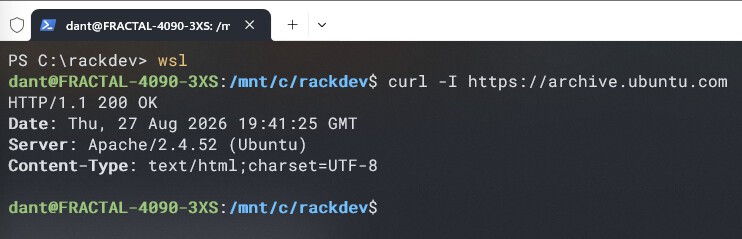
and then re-run WSL and verify connectivity
curl -I https://archive.ubuntu.com
Kern
I am using Kern inside WSL
-
No Docker Desktop Baggage: Runs standard container images without installing Docker Desktop, managing heavy background daemons, or dealing with licensing terms.
-
Instant Startup: Kern is written in Rust and operates directly on native Linux namespaces, executing build commands in milliseconds rather than waiting for container runtime overhead.
-
100% Immutable Builds: Compiles your plugin in a pinned, clean Ubuntu environment so updating Windows or WSL packages will never break your build pipeline.
-
Zero MSYS2 Drift: Avoids rolling-release package breakage and POSIX path issues by isolating the MinGW-w64 cross-compiler entirely inside the container image.
-
Single Script Workflow: Developers on Windows just run a simple
.batfile that calls Kern transparently behind the scenes, no manual environment setup required.
Install Kern in the WSL terminal
curl -fsSL https://getkern.dev/install.sh | sh
if you get a warning about the PATH var
echo 'export PATH="$HOME/.local/bin:$PATH"' >> ~/.bashrc && source ~/.bashrc
then verify it
kern --version
Since we will want to use kern via bat scripts, we need to make it available outside of WSL
sudo ln -s "$HOME/.local/bin/kern" /usr/local/bin/kern
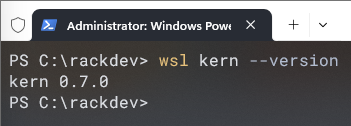
and we can verify this works back in the Windows terminal using
wsl kern --version
The Dockerfile
Create C:\rackdev\Dockerfile.vcv with the following content:
FROM ubuntu:24.04

ENV DEBIAN_FRONTEND=noninteractive

# 1. Force valid DNS nameservers inside the container layer
# 2. Disable APT sandbox privilege dropping for rootless user namespaces
# 3. Install Clang/LLVM toolchain and MinGW runtime libraries
RUN echo "nameserver 1.1.1.1\nnameserver 8.8.8.8" > /etc/resolv.conf && \
    echo 'APT::Sandbox::User "root";' > /etc/apt/apt.conf.d/01sandbox && \
    apt-get update && apt-get install -y --no-install-recommends \
    build-essential \
    clang \
    llvm \
    lld \
    mingw-w64 \
    make \
    cmake \
    autoconf \
    automake \
    libtool \
    pkg-config \
    zip \
    unzip \
    tar \
    zstd \
    jq \
    python3 \
    git \
    curl \
    ca-certificates \
    && rm -rf /var/lib/apt/lists/*

WORKDIR /workspace
and then test it from Windows terminal with
wsl kern build -t vcv-builder:local -f Dockerfile.vcv .
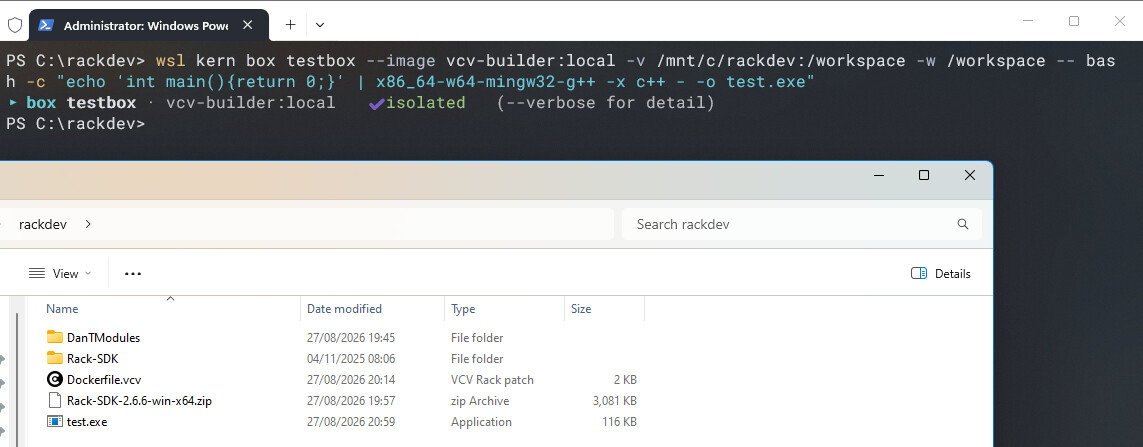
Once it has all downloaded and built, you can test it in Windows terminal to build a simple exe
wsl kern box testbox --image vcv-builder:local -v /mnt/c/rackdev:/workspace -w /workspace -- bash -c "echo 'int main(){return 0;}' | x86_64-w64-mingw32-g++ -x c++ - -o test.exe"
if it works you will see a new file C:\rackdev\test.exe
BATs for building
My plugin will be in C:\rackdev\DanTModules
Create the file vcv-make.bat in your plugin directory and add the following content
@echo off
setlocal

:: Target directory for Rack plugins
set "RACK_PLUGINS_DIR=C:\Users\danti\AppData\Local\Rack2\plugins-win-x64"

:: Flag to track whether an install step was requested
set DO_INSTALL=0
set MAKE_ARGS=

:: Parse arguments to detect install flags while forwarding targets to make
:parse_args
if "%~1"=="" goto run_build
if /i "%~1"=="install"   (set DO_INSTALL=1) & goto next_arg
if /i "%~1"=="-i"        (set DO_INSTALL=1) & goto next_arg
if /i "%~1"=="--install" (set DO_INSTALL=1) & goto next_arg
set "MAKE_ARGS=%MAKE_ARGS% %1"
:next_arg
shift
goto parse_args

:run_build
:: If install was requested without extra targets, default make target to 'dist'
if "%DO_INSTALL%"=="1" if "%MAKE_ARGS%"=="" set "MAKE_ARGS=dist"

:: Target Windows 64-bit cross-compilation
set ARCH=win
set CROSS_COMPILE=x86_64-w64-mingw32

:: Force GNU 3-byte bitfield packing and silence Clang-specific warnings
set EXTRA_FLAGS=-mno-ms-bitfields -Wno-c++17-extensions -Wno-absolute-value -Wno-unused-function

:: Link static C/C++ runtimes and export symbols for Rack dynamic loading
set LDFLAGS=-shared -L/workspace/Rack-SDK -lRack -Wl,-Bstatic -lstdc++ -lpthread -lgcc -lgcc_eh -Wl,-Bdynamic -Wl,--export-all-symbols -Wl,--warn-once

:: Execute make inside the isolated Kern container
wsl kern box vcv-build ^
    --image vcv-builder:local ^
    -v /mnt/c/rackdev:/workspace ^
    -w /workspace/DanTModules ^
    -- bash -c "export RACK_DIR=/workspace/Rack-SDK ARCH=%ARCH% CROSS_COMPILE=%CROSS_COMPILE%; make CC=clang CXX=clang++ EXTRA_FLAGS=\"%EXTRA_FLAGS%\" LDFLAGS=\"%LDFLAGS%\" %MAKE_ARGS%"

:: Copy built .vcvplugin package to destination if install was requested and build succeeded
if %ERRORLEVEL% equ 0 (
    if "%DO_INSTALL%"=="1" (
        if not exist "%RACK_PLUGINS_DIR%" mkdir "%RACK_PLUGINS_DIR%"
        echo Copying package to %RACK_PLUGINS_DIR%
        copy /Y "C:\rackdev\DanTModules\dist\*.vcvplugin" "%RACK_PLUGINS_DIR%\"
    )
)

endlocal
and then test build the plugin using
& "C:\rackdev\DanTModules\vcv-make.bat" dist
if it works correctly you should see the standard vcvplugin archive created in the dist folder in the plugin directory.
Since the build is inside the linux filesystem, we cannot call the make install command directly, so I added a similar function in the bat file, just make sure the RACK_PLUGINS_DIR var is correct
& "C:\rackdev\DanTModules\vcv-make.bat" install
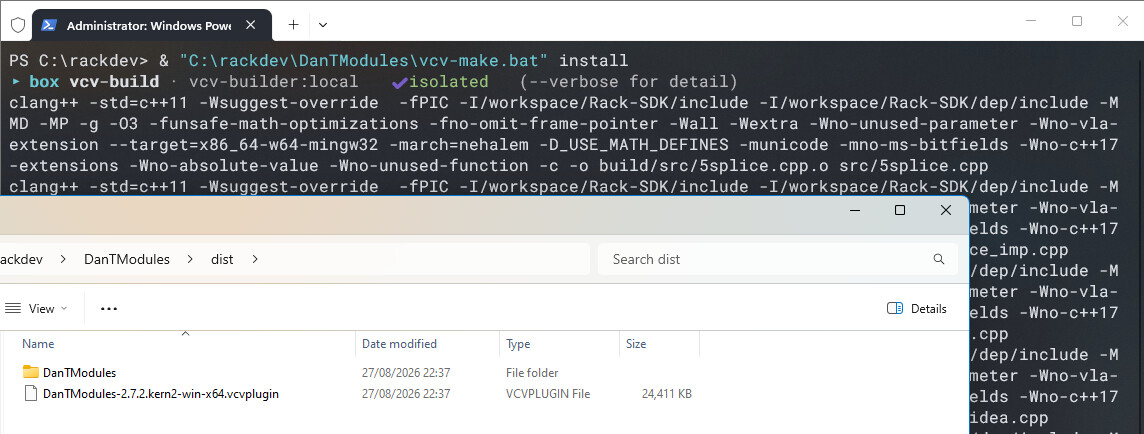
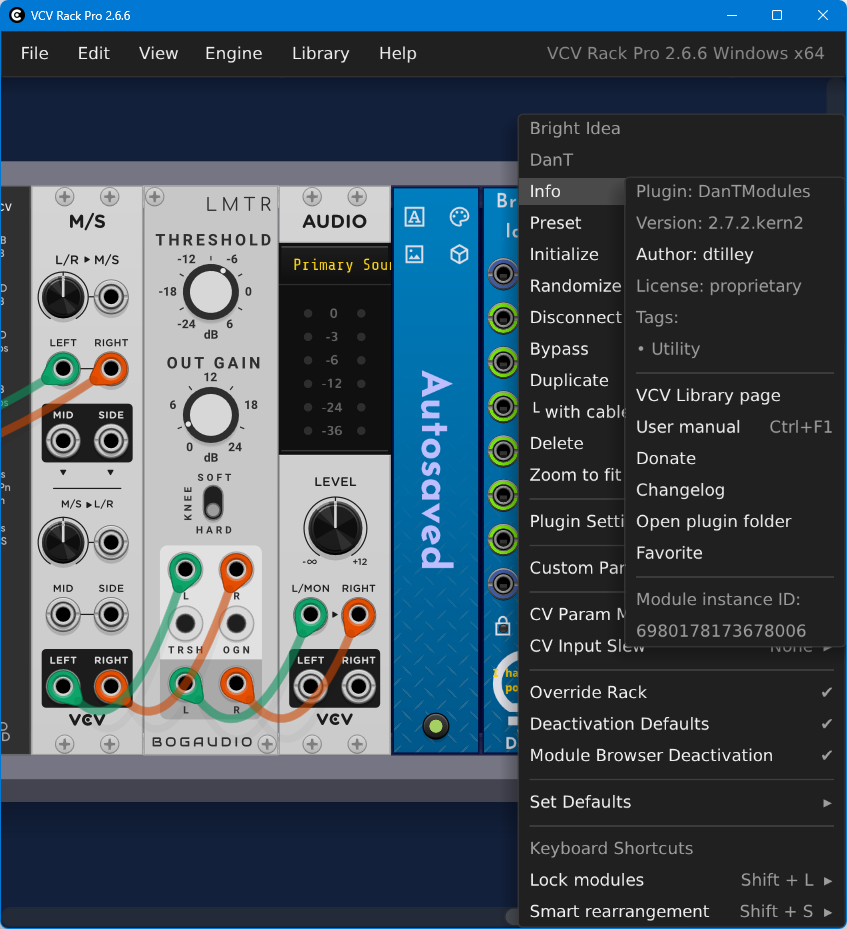
And thats all for now, just edit your code, build and install with the bat file, run Rack to test the changes.
If you try this and it works for you please let me know.
If you try this and have any issues, I’ll try to help if I can.
Hopefully I will also be able to get building rack from source and using gdb to work, and then use the rack toolchain to build cross platform (without needing github actions)… will post more when I make progress.
