- July 2026 -
v2.7.1- Adds drag-and-drop, QoL features, Memory Banks - June 2026 -
v2.7.0- initial version of Kapow added
Kapow
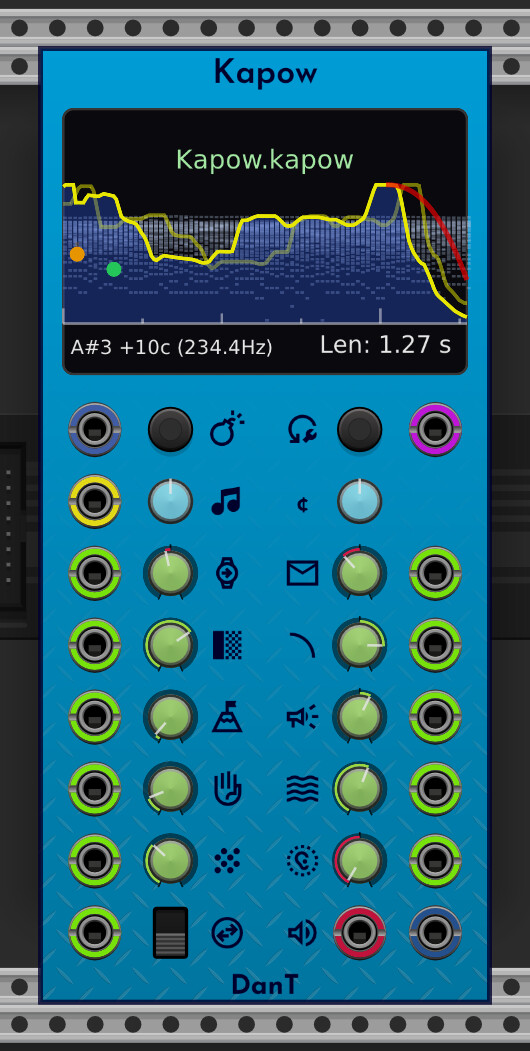
Overview
Kapow is a polyphonic additive spectral resynthesis voice. Instead of playing back raw audio files directly, it tries to reconstruct sounds by layering individual sine wave oscillators and a basic residual noise generator.
What is Resynthesis
Resynthesis is the process of recreating an existing sound using basic acoustic building blocks. According to acoustic theory, any complex audio signal can be broken down into a combination of simple sine waves layered together at different frequencies and volumes.
To recreate a sample, Kapow first analyses the original audio to find these frequencies. It then sets up a bank of sine wave oscillators—each tuned to a specific component of the original sound—and plays them back together. By layering these sine waves alongside a bit of filtered noise for the unpitched parts of the sound, the module attempts to synthesise a recognisable recreation of the original audio.
Resynthesis vs Sampling
A traditional sampler plays back the raw PCM (Pulse Code Modulation) audio samples in a linear fashion. To change the pitch, it has to speed up or slow down the playback speed, which unfortunately links pitch and time together: transposing a sound up makes it play faster and shorter, while transposing it down makes it play slower and longer.
Kapow does not play back raw audio samples.
Instead of playing back the recorded waveform, Kapow uses a Short-Time Fourier Transform (STFT) during its offline analysis phase. It slices the audio into 5-millisecond frames (a 200 Hz analysis rate). In each frame, it measures:
-
The overall volume envelope of the sound.
-
The frequency ratios and amplitudes of up to 256 individual sine wave partials.
-
The residual noise level and its spectral tilt (whether the noise is low-frequency rumble or high-frequency hiss).
When triggered, Kapow reads this structural data from memory and instructs its internal oscillators to recreate the sound from scratch.
Pros of Resynthesis
Because the sound is built from scratch in real time, it opens up some musical options that traditional samplers struggle to achieve:
-
Independent Pitch and Time: You can stretch the playback speed to extreme values—from completely frozen (a single spectral snapshot) to 10x speed—without altering the pitch. You can also modulate the pitch across octaves via CV without changing the playback speed.
-
Envelope Warping: You can shape the playback velocity non-linearly. For example, you can compress the attack stage to make it punchy, or stretch the decay into an ambient wash.
-
Smooth Reverse Playback: Reversing playback simply means reading the analysis frames backward.
-
Fidelity Scaling: You can select how many active sine waves to use. Lower counts create lo-fi, chiptune, or vintage additive textures, while higher counts offer a clearer reconstruction of the original sound.
-
Transient and Noise Shading: You can independently boost or cut the attack transient, reshape the volume fade-out curve, or adjust the residual noise balance.
Consequences of Resynthesis
While this approach is very flexible, it certainly has some quirks and trade-offs:
-
Offline Analysis Needed: You cannot just drag-and-drop audio for instant playback. Every sample has to be pre-processed once through the analyser to create the
.kapowfile. -
Heavy CPU Footprint: Running up to 256 sine wave oscillators per voice in polyphonic patches with up to 16 channels can be extremely CPU demanding.
-
Pitch Tracking Quirks: Resynthesis depends on finding the fundamental frequency to scale its sine wave ratios. The analyser uses the Harmonic Product Spectrum (HPS) pitch-detection algorithm to automate this, though complex samples can sometimes confuse it.
Legal & Copyright Considerations
Disclaimer: I am not a lawyer, and this is not legal advice.
From a legal perspective, resynthesis might be a bit of a grey area. Because .kapow files do not store raw PCM audio data, sharing a .kapow file is not quite the same as distributing a copyrighted audio sample. Instead, it is simply a mathematical list of sine wave ratios, amplitudes, and noise shapes.
This makes .kapow files an interesting option for users who want to share samples. However, please be responsible and respect original copyright laws and the work of other artists when analysing and synthesising source material.
Basic Operation
Setting up Kapow is relatively simple. Here is the basic workflow to get a sound up and running:
-
Load and Analyse Audio: You can select a file via Audio File Processing → Select Audio File… or simply drag-and-drop any supported audio file (
.wav,.mp3,.flac) or pre-analyzed file (.kapow) directly onto the module display panel. -
Background Analysis: When loading raw audio, a dark status overlay displays progress. You can bypass the simulated stage delay using Simulate Stage Delay in the context menu, or have the overlay close automatically once finished by checking Auto Close Analysis Overlay.
-
Save the Kapow File: Click Save Data on the overlay (or right-click → Save Analysis Data As…) to export a
.kapowfile. If you prefer not to manage external files, turn on Embed Kapow data in patch in the context menu to save analysis data directly inside the patch file. -
Connect the output to your mixer or audio system.
-
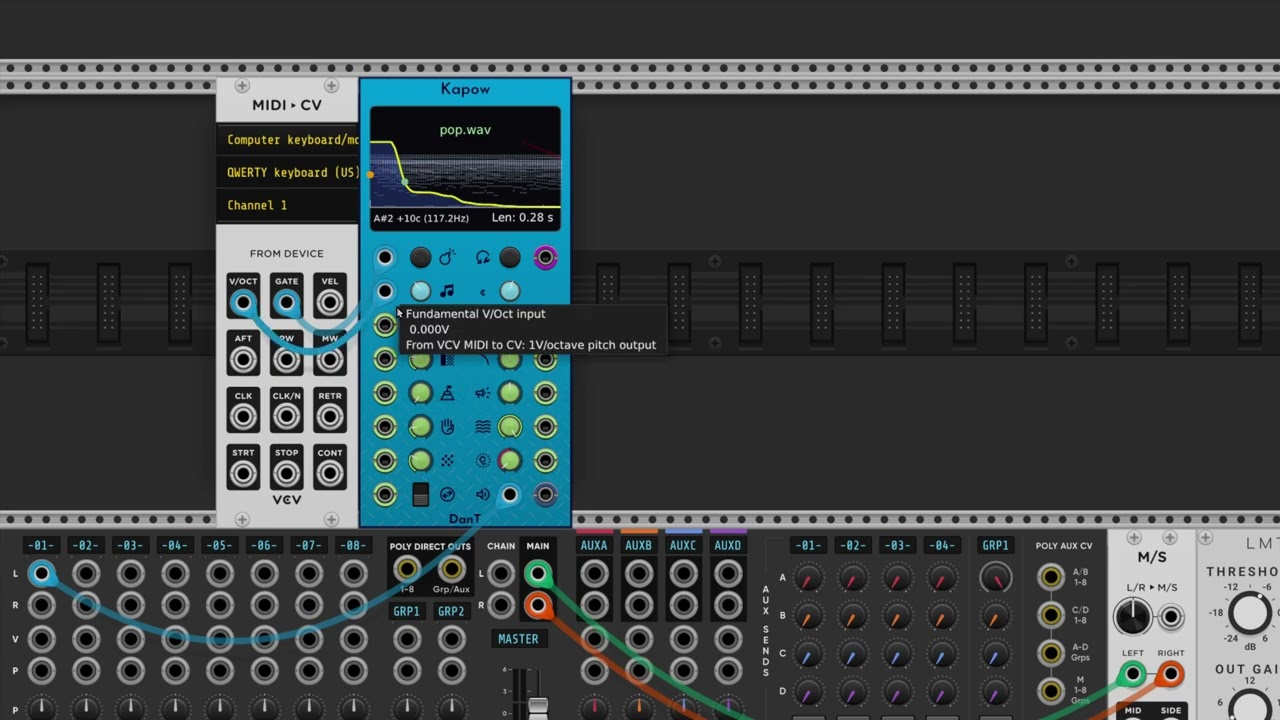
Tuning: Double-click both the Fundamental V/Oct coarse knob and the Fine Tune knob. These knobs will snap to the default values calculated by the analyser, matching the detected base pitch of your original sample.
-
Trigger vs. Gate Playback:
-
Clicking the trigger button sends a short trigger, which plays the sound once from start to finish.
-
Holding the trigger button sends a gate, which plays the sound forward, and if you keep holding it, the voice will transition into a sustain loop centred around the Gate Hold Position (which the analyser tries to place at the most stable tonal region of the sample).
Preparing Audio for Analysis
To get the best possible resynthesis results, it helps to prepare your audio files before running them through the analyser:
-
10-Second Analysis Limit: The analyser is designed with a strict limit of 10 seconds. If you select an audio file that is longer than 10 seconds, it will be automatically truncated to the first 10 seconds.
-
Trim and Clean: A clean, well-trimmed audio sample will always yield a much better resynthesis than a messy recording with background noise. While Kapow does its best to dynamically compensate for low volumes and detect fundamental frequencies, background hum, room rumble, or tape hiss can easily confuse the HPS pitch tracking and partial tracking, leading to metallic ringing or pitch instability.
-
Normalise and Noise Removal: For the best results, it is a good idea to normalise your sample, trim silence from both ends, and clean up any background noise in an external editor before running the analysis.
Module Controls
Pitch & Playback Controls
-
Fundamental V/Oct (Coarse): Adjusts the base pitch of the resynthesised voice over a range of -5.0V to +5.0V. Double-clicking snaps it to the frequency the analyser detected.
-
Fine Tune: Tweak the pitch by -100 to +100 cents. Double-clicking snaps to the detected cents offset.
-
VOCT Input: Standard V/Oct pitch control input. Polyphonic.
-
Time Scale: Controls the playback speed (-10.0x to +10.0x). Uses exponential scaling: positive values speed up playback, while negative values slow it down.
-
Reverse Playback: A toggle switch to reverse the playhead direction (Forward/Reverse).
Envelope & Shape Modifiers
-
Envelope Warp: This control compresses the envelope shape (-100% to +100%) towards either the start or the end of the sample.
-
Fade Out Strength: Sets the depth (0% to 100%) of a volume fade applied to the final 20% region of the sound.
-
Fade Out Shape: Adjusts the curve of the fade-out from log through linear to exp.
Transient & Loop Controls
-
Transient Position: Sets the position in the sample where the transient strength control affects the envelope. Snaps on double-click to the frame where the analyser found the most prominent transient.
-
Transient Strength: Adjusts the envelope at the transient position. Positive values boost the attack, while negative values soften it.
-
Gate Hold Position: Sets the position in the sample of the sustain loop, activated when holding a gate high. Snaps to the detected stable tonal frame on double-click.
Timbre & Fidelity Controls
-
Sines (Resynth Sine Wave Count): Represents a power-of-2 count from 2 to 256 active sine waves. Fewer partials create a lo-fi vintage chiptune vibe and save a lot of CPU, while higher counts offer a clearer reconstruction.
-
Noise Amount: Adjusts the level of the residual noise component.
-
Noise Tilt: Balances low-frequency vs. high-frequency noise using a simple Tilt Filter.
Triggering & Outputs
-
Trigger/Gate Button & Input: Manually gates/triggers the voice or accepts CV trigger/gate signals.
-
Reset Button & Input: Triggers a soft reset. You can choose which parameters are reset in the right-click menu.
-
Activate Memory Bank input: Polyphonic CV trigger port to dynamically recall memory banks. Triggers map to polyphonic channels (Channel 1 maps to Bank 1, and so on) using Schmitt triggers. If a bank is unset, triggers on that channel are safely ignored.
-
Kapow Output: Resynthesised audio output (scaled to standard Eurorack +/-5V, hard-clipped at +/-10V). It uses a basic lowpass decay filter to smoothly ramp the volume to zero when playback ends to prevent popping. Polyphonic.
-
EOR (End of Resynthesis) Output: Emits a 10V trigger pulse (1ms duration) when playback reaches the end of the sample (or the start when in reverse). Polyphonic.
Interactive Visualiser Display
The display provides a simple real-time guide to help you see what is happening to the sound:
-
Log-mapped Spectrogram: A background plot of the top 32 loudest partials, mapped logarithmically from 20 Hz to 20 kHz.
-
Dynamic Envelope Overlay: A faint yellow line shows the original analysed volume envelope, while a solid yellow line represents your warped or modified volume envelope.
-
Interactive Markers:
-
An orange dot shows the Transient Position.
-
A green dot shows the Gate Hold Position.
-
A red curve shows the Fade Out effect.
-
Multi-Playhead Tracker: Shows where each active voice playhead is currently positioned.
-
Top left displays a poly badge when the module is in polyphonic mode.
-
Bottom left displays the original sample’s detected pitch.
-
Bottom right displays the length of playback in seconds. There is a horizontal axis along the bottom of the display that also represents playback time.
Right-Click Context Menu
Right-clicking the panel gives you access to several additional settings:
-
Retriggers Enabled: When checked, sending a new trigger or gate while the voice is active immediately ends that playback and starts a new playback. When unchecked, any new triggers or gates are ignored until the voice finishes playing.
-
Polyphony Enabled: Toggles polyphonic support.
-
Reset Behaviour Submenu: Lets you select which knobs and parameters are affected when you click the Reset button or send a Reset CV pulse.
-
Reset on successful analysis: When checked, automatically triggers a parameter and voice reset the moment a background audio file analysis finishes successfully.
-
Reset for Kapow drag-and-drop: When checked, automatically triggers a parameter and voice reset when you drag-and-drop a file onto the module.
-
Embed Kapow data in patch: When checked, automatically saves the main analysis data and all 16 memory bank files directly inside the VCV Rack patch storage folder/bundle (making your patch completely self-contained). When unchecked, the module references the local file path.
NOTE: Disabling this option on a patch that contains embedded data will prompt you to save all embedded analysis files locally back onto your disk to prevent data loss.
- Memory Banks Submenu: Accesses the 16 memory preset slots.
- Store Current State: Saves the currently loaded analysis data and all 13 knob parameters to this bank.
- Load Bank State: Recalls the bank’s stored parameters and analysis data (swaps cleanly with a click-free 10ms crossfade, caching incoming triggers during the transition).
- Clear Bank: Deletes all stored data from the bank.
- Audio File Processing Submenu:
- Select Audio File…: Open a dialog to analyse a WAV, MP3, or FLAC file.
- Load Analysis Data…: Load a pre-saved
.kapowfile. - Save Analysis Data As…: Export the active analysis data to a
.kapowfile. - Open Presets folder…: Access the folder where Kapow presets are saved by default.
- Trim Pre-Silence: When checked, the analyser automatically discards silence at the very start of your audio file.
- Silence Threshold (dB): Sets the volume threshold used by the silence-trimmer (defaults to -60 dB).
- Simulate Stage Delay: When checked, simulates stage-by-stage delay on the status overlay for visual feedback. Unchecking it bypasses the delay for near-instant analysis.
- Auto Close Analysis Overlay: When checked, automatically closes the dark progress status overlay immediately upon successful analysis completion.
Polyphony
Right-clicking the panel and checking Polyphony Enabled enables up to 16 voice channels. The module automatically manages the active channel count based on the number of channels connected to the VOCT and TRIGGER inputs.
CPU Saving Tips
Because running hundreds of oscillators in real time is computationally expensive, polyphonic patches can be very CPU heavy, so here are a few tips to reduce the weight:
-
Reduce Sines Count: Lowering the Sines knob (e.g., to 16 or 32 sines) dramatically reduces the work the CPU has to do, and depending on the original sample, can often sound as good as higher counts.
-
Minimise Channel Count: Try to only use as many polyphonic channels as your patch actually needs.
-
Bypass the Tilt Filter: Setting the Noise Amount to 0% completely bypasses the Tilt Filter code.
-
Reduce Envelope Warp: Keeping Envelope Warp closer to 0% avoids complex power-curve calculations.
Creative Sound Design Ideas
Because Kapow synthesises sound from scratch and completely decouples pitch and speed, it has some non-obvious creative use cases. Here are just a few creative ideas:
-
Endless Drone Generator: Patch a slow LFO into the Reverse Playback CV input. Trigger playback once. As the LFO toggles playback back and forth, the voice will continually read the analysis data forward and backward without ever stopping. Combine this with manual tweaks or CV modulation of the Time Scale (to stretch the sound) and Fundamental V/Oct controls to create endless, shifting spectral drones. You can also combine the LFO with an offset and then use the offset amount to move the directional loop backwards and forwards through the sample.
-
Granular Style Glitches: Turn up the time control so that the sample playback is quite fast. Patch a random jumping CV to the Gate Hold Position. Patch the EOR output to the Trigger input so that when the playback ends it immediatley retriggers a new playback. Patch an additional manual gate to the Trigger input, now when you hold a gate the playback quickly reaches the sustain loop and jumps around based on the random CV.
-
Frequency Modulation (FM) Chaos: Try patching an audio-rate signal from a standard VCO into the VOCT pitch input. Depending on the harmonic complexity of your original sample, this frequency modulation can generate beautifully metallic, chaotic, or completely unearthly sideband timbres.
-
Resculpting Non-Drum Sounds into Percussion: Load a short, non-percussive sample (such as a spoken word, a vocal snippet, or a string pluck). Turn the Sines count down to simplify the harmonics, boost the Transient Strength to its maximum positive value for a sharp clicky attack, and use the Noise Amount and Noise Tilt to sculpt the decay. With a bit of experimentation, you can turn almost any sound into unique electronic hi-hats, metallic snares, or clicky woodblocks.
.kapow Files
The .kapow file is a proprietary binary data format designed just for the Kapow resynthesis engine.
-
No PCM Audio: Unlike standard audio files,
.kapowfiles do not contain any raw audio waveforms. Instead, they store structured lists of analysed parameters (envelope values, sine wave frequency ratios, partial amplitudes, and noise shapes). -
Efficient Loading: The file is structured to match the internal SIMD layout of the engine. This lets Kapow load files quickly and perform real-time memory interpolation.
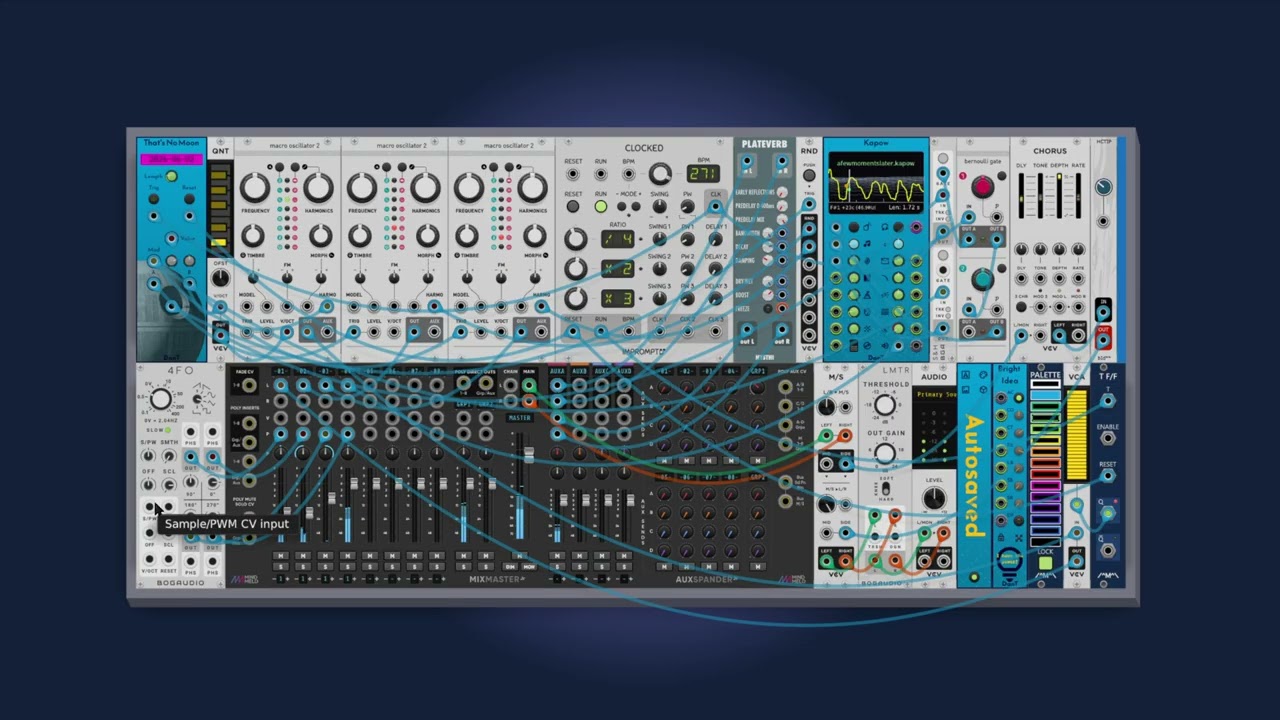

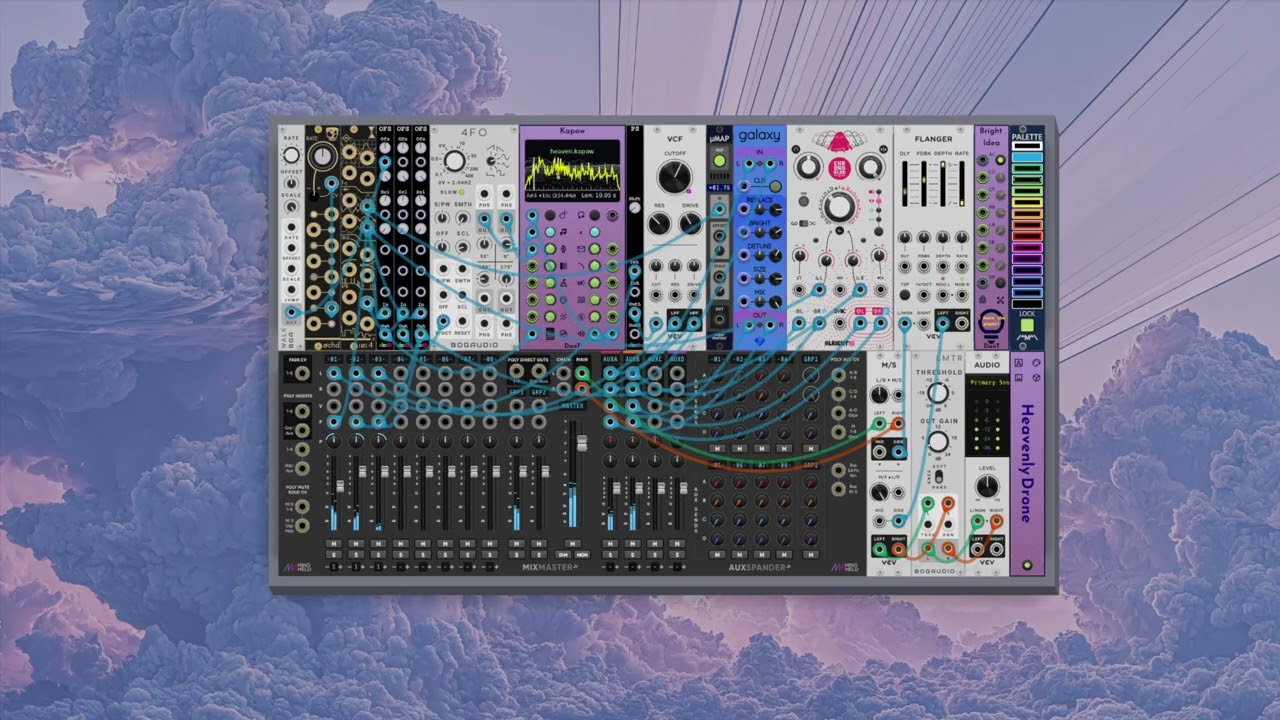

 .
.